Once a yearUpdate leadership and club pages
Once a year
Update leadership and club pages
At the start of each school year and each club season, several pages need new names, dates and links.
Before you start
- Signed in to Webflow. Adding rows, clubs or pages is for the site manager
- The new names, role addresses, dates and registration links
Steps
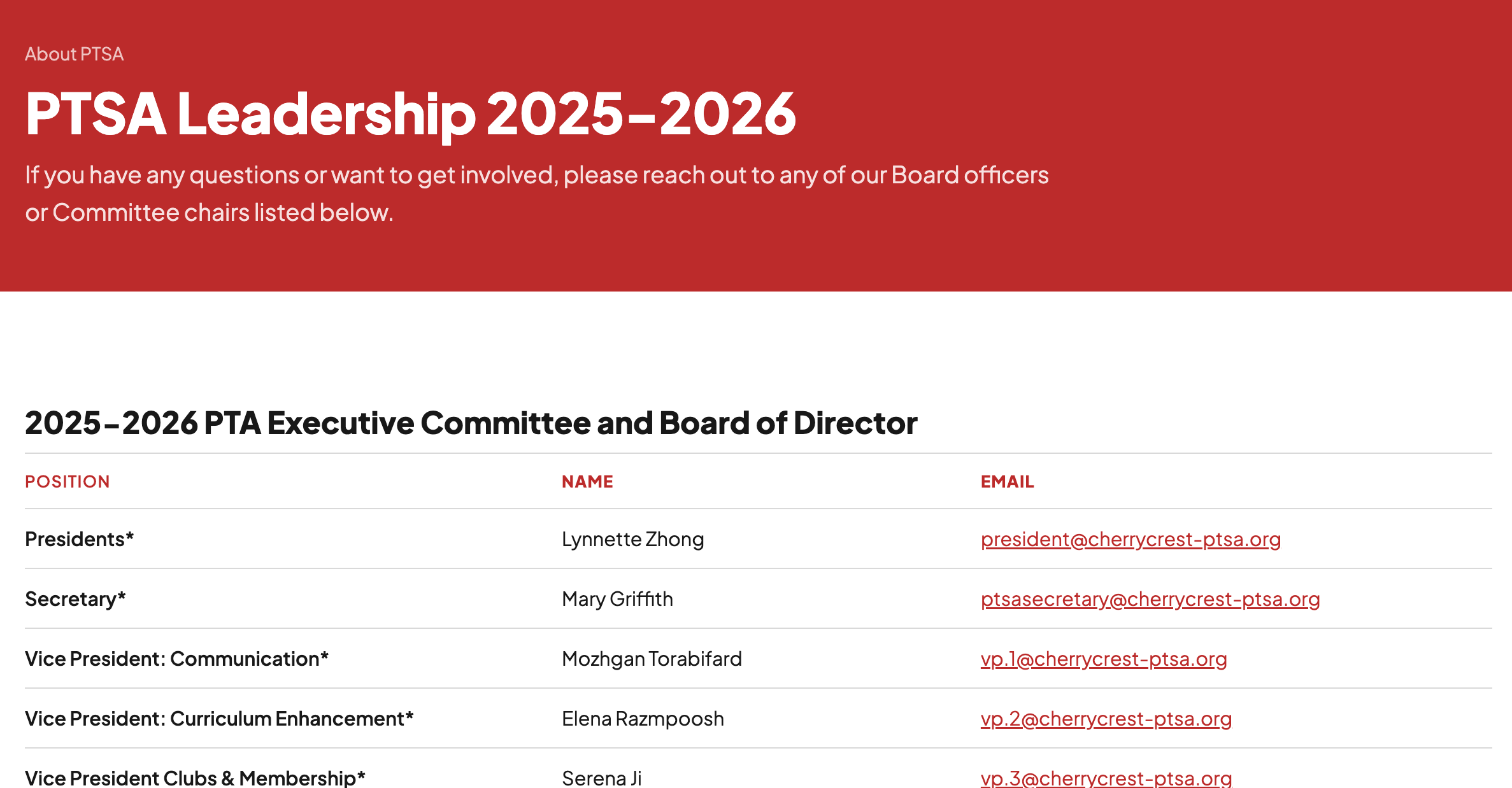
- PTSA Leadership (
/ptsa-leadership): change the year in the heading (it still says 2025–2026), then each role, name and email. Use role addresses (president@…) rather than personal ones. The site manager duplicates or removes rows. - Executive Team (
/ec) and About the PTSA: same check. - Clubs Overview: update the season text, the registration dates, the schedule table and the club list (one drop-down per club).
- Each club page: dates, grades, price, chair and registration link.
- A new club (site manager): duplicate the Chess Club page and rename it, then add it to the Clubs menu in the site header and to the Clubs Overview list.
- A club that ended: take it out of the menu and the overview. Set the page to draft if nobody needs it.
- Fundraising and event pages (Walk-a-Thon, Giving Month and others): update amounts, goals and dates.
- Publish the site and check the pages on a phone.
Good to know
- Header and footer menus are separate. If you change a link group in the footer, change the matching menu in the header too. Clubs are listed only in the header's Clubs menu; the footer links to Clubs Overview.
- A new club page uses one static page of the plan's 300.
- The schedule table has one row per club. To add a club on a day that already has one, the site manager duplicates a row of that day and makes the day cell one row taller.