The Charger ChatterMake and send the weekly Charger Chatter
The Charger Chatter
Make and send the weekly Charger Chatter
You write the issue in Webflow, check it in the composer, and send it from Brevo. The composer never sends to the whole list; the last click is always yours, in Brevo.
Not live yet. Brevo is not set up for the PTSA, so keep sending from MailPoet until launch. TBD where the composer runs and its web address.
Before you start
- Access to Webflow, the composer and Brevo (get access)
- You have read how the three fit together (tour)
- About 45 minutes the first time to learn the steps, on top of your usual writing time
- Update the home page box and publish the site (steps).
- Publish any news posts you want to feature (steps).
Steps
- Open the composer and go to New newsletter.
- Fill in Newsletter name (for example "Chatter – Nov 3, 2026"), Subject line, Inbox preview text, Issue date and an optional Intro.
- Optional: tick posts on the right to add them as cards, and pick each one's section.
Why: Don't see a post you just published? The composer refreshes its list every 5 minutes, to stay within Webflow's limit of about 60 requests a minute.
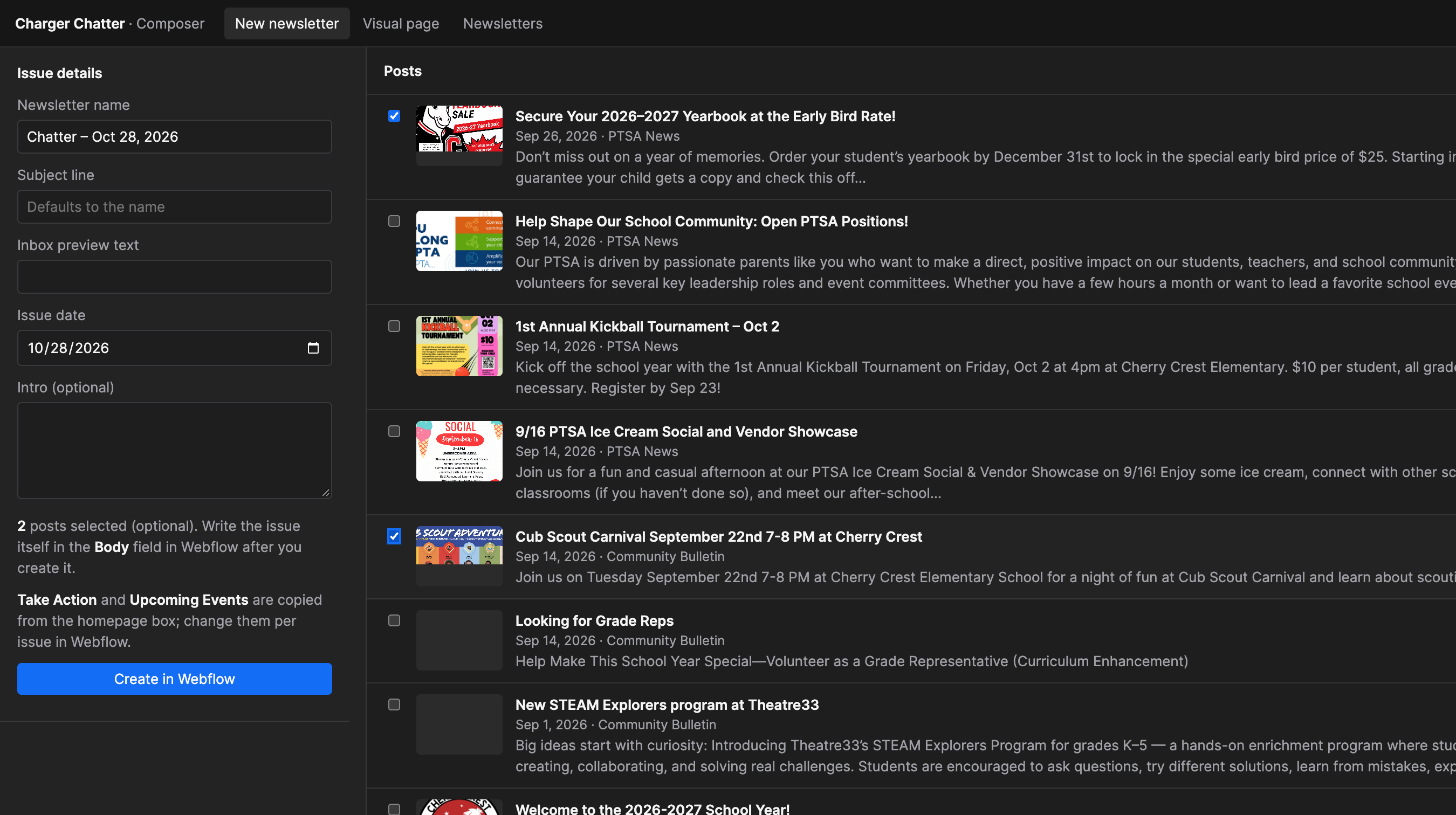
The New newsletter form, with a name filled in and two posts ticked. Each post's section menu is at the right end of its row. - Click Create in Webflow. The issue is made as a draft.
Why: A whole-site publish skips drafts, so a half-written issue can't go online when someone publishes a page edit.
- Click Newsletter fields ↗ and write the issue in the Body field in Webflow:
- a block quote becomes a maroon callout box;
- 2 or 3 photos in a row become a photo row;
- a paragraph that is only a link becomes a button.
- Back in the composer, click Refresh from Webflow. Read the email preview and fix everything under Check before sending (missing alt text, for example).
Why: It also warns when an issue is over about 90 KB, before Gmail cuts emails off at about 102 KB. Shorten or split the issue.
Screenshot to addScreenshot: the composer's issue view, with the email preview on one side and the Check before sending list showing a "missing alt text" warning. - Click Publish to website. The issue gets its web page, appears in the Chatter Archive, and the "view in browser" link starts working.
Why: This publishes only this issue and its cards, not the rest of the site.
- Under Send via Brevo, tick Live: really call Brevo, then click Create Brevo draft. Without the tick it is only a dry run.
- Click Send test email. Check the test on a phone and on a computer.
- Click Open in Brevo ↗, check the list and the time, and send or schedule it in Brevo.
Why: The composer can make drafts and send tests, but sending to every family is kept as a separate, deliberate step.
Screenshot to addScreenshot: the Brevo campaign page for the draft, with the recipient list, the send time and the Schedule / Send buttons highlighted.
Changed something in Webflow after publishing? Click Publish changes to website again. Brevo needs a new draft if the email changed.
Webflow's own guide, for the general idea: Save and publish Collection items. It is not about this site, so where it differs, follow this page.