The Charger ChatterMake a special issue
The Charger Chatter
Make a special issue
A special issue is a one-topic Chatter with its own layout. It is a real page on the website, made from a model page called Newsletter Starter, plus a Newsletters item that lists it in the archive.
Step 4 publishes the whole site. Any half-finished page edit by anyone goes live with it. Check first.
Before you start
- You know the weekly Chatter steps: this builds on them
- Access to Webflow, the composer and Brevo
- Agreement that you may publish the whole site (TBD who may)
Steps
- In the composer, open Visual page. The note under the form says how many blank spare pages are left.
Why: Webflow's API can't create or copy pages, so copies of Newsletter Starter wait as drafts and the composer renames one for each issue. Each uses one of the plan's 300 static pages.
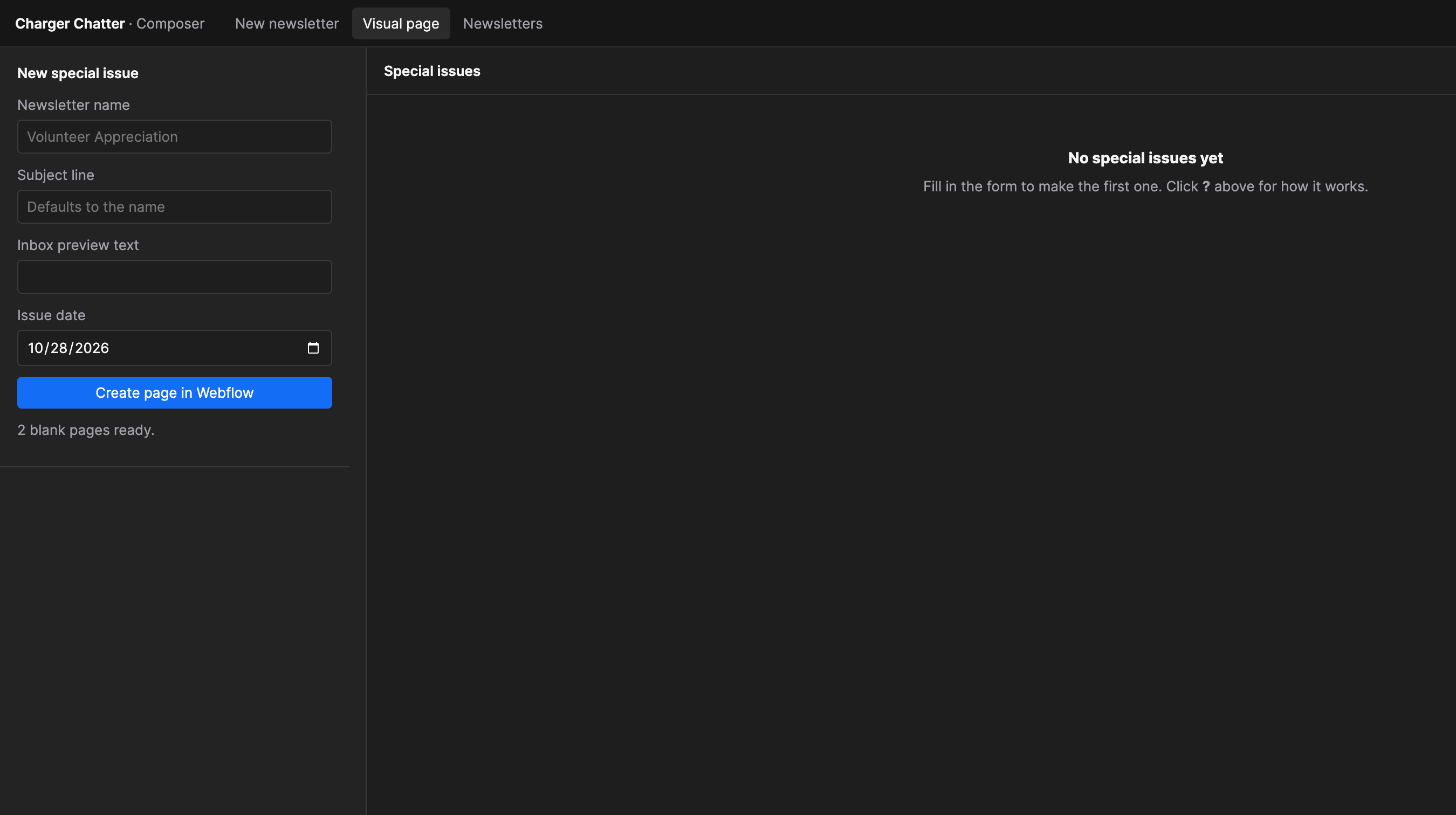
The Visual page tab. The note under the button says how many blank pages are ready. - Fill in the name, subject, preview text and date, then click Create page in Webflow. This turns one spare into your page (still a draft) and adds the issue to the newsletter list.
- Click Edit in Webflow. Type the page title and intro yourself; the composer cannot fill them.
Why: Webflow's API can't write text on a page in the site's main language.
Replace the sample text, photos and buttons. Copy the maroon box for an important message and the photo row for 2–3 photos side by side. - Check nobody has unfinished page edits, then click Publish to website in the composer. This publishes the whole site.
Why: A new page can only go online with a whole-site publish on this plan, and the composer must publish before it can build the email from the live page. Anyone who can use the composer can do this. TBD who may.
- Read the email preview. Email has no columns, tabs or accordions: they are stacked or opened, and listed under Check before sending.
- Create the Brevo draft, send a test and send from Brevo, as for a weekly issue.
When the spares run out
The composer says "No blank pages left". On Oct 15, 2026 there were 2 spares. The site manager makes more in the Designer:
- In Pages, open the settings of Newsletter Starter and choose Duplicate.
- Rename the copy exactly "Unused special issue page 1" (or the next unused number). Keep it a draft.
- Make two or three at a time. Do not publish the site just for this.
Spares are copies made at that moment: a later design change to Newsletter Starter does not reach spares made earlier.