Everyday tasksAdd or edit a news post
Everyday tasks
Add or edit a news post
News posts are CMS items. You fill in a form, publish the item, and the post appears on the news pages and the home page by itself.
Before you start
- Signed in to Webflow (get access)
- The post text, and a photo with a one-line description of it
- The category (PTSA News, School News, Community Bulletin or District News)
Steps
- Open CMS → News Posts → New item. To edit a post, click it in the list instead.
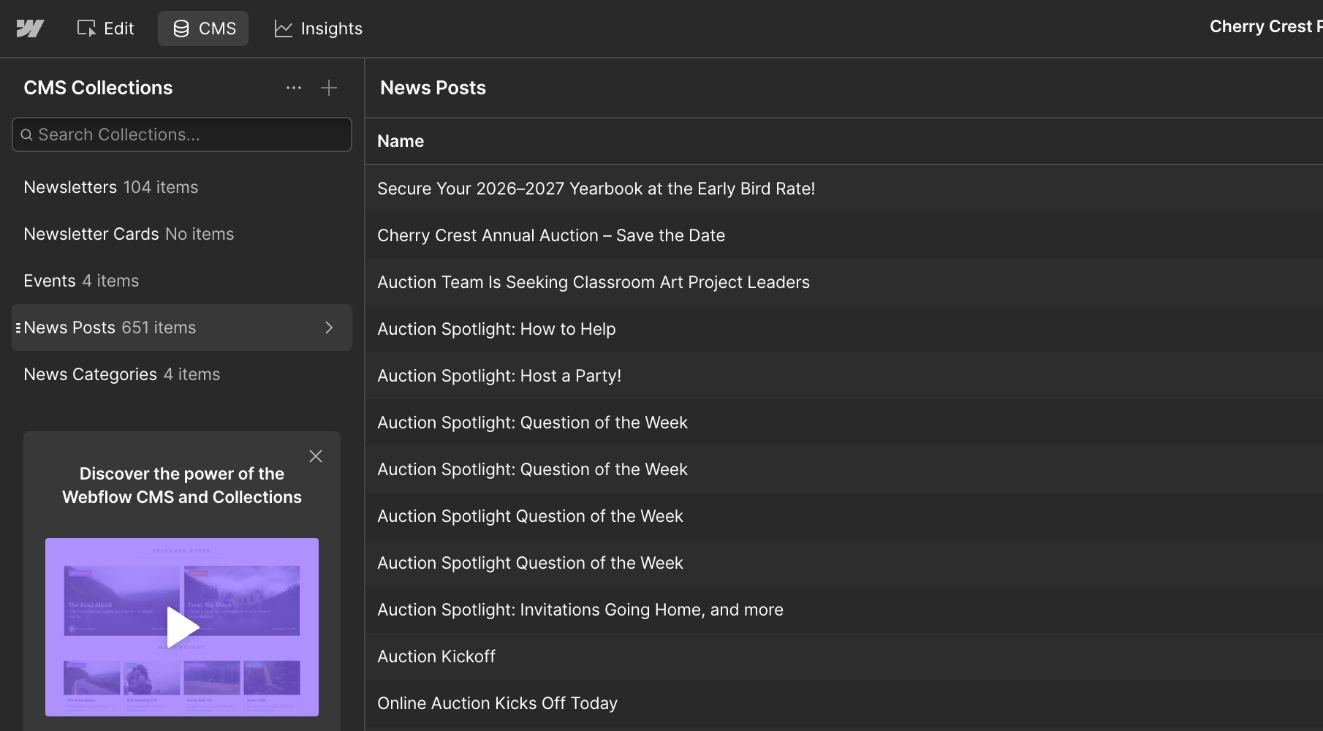
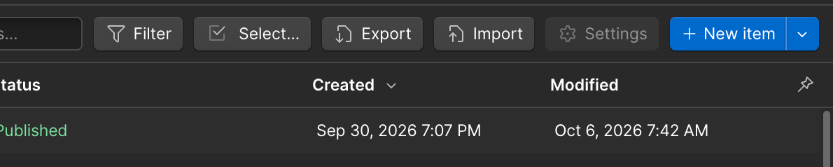
News Posts in the CMS view, with New item at the top right. - Fill in Name (the title). Webflow fills in the Slug for you.
- Pick a Category (for example PTSA News or School News) and the Article date. Both are required.
- Write 1–2 sentences in Post Summary. This shows on the news cards.
- Add a Main Image and describe it in Featured image alt.
- Write the Post Body. Use headings and bullet lists from the toolbar; paste plain text, not Word formatting.
Screenshot to add
Screenshot: an open News Post item, with the Category, Article date, Post Summary and Main Image fields labelled. - Optional, for the Chatter: a shorter Newsletter Title, Newsletter Summary or Newsletter Image.
- Click Publish on the item. It appears on
/all-news, its category page and the home page.
Good to know
- Publishing one post publishes only that post. Nothing else on the site changes, so you do not need to check with anyone first.
- Posts do not use up pages. They are CMS items, and the plan allows 20,000. See why so much is in the CMS.
- Scheduling works only for a post that has never been published. A change to a live post goes online when you publish it.
- To take a post down, unpublish it or set it back to draft. Archive it rather than deleting it.
- Do not change the slug of a published post. Links to it would break (never delete or rename).
- For the Chatter: the composer refreshes its list of posts every 5 minutes, so a post you just published can take that long to appear there.
TBD whether the 611 older posts from WordPress, now drafts, get published.
Webflow's own guide, for the general idea: Collection items overview. It is not about this site, so where it differs, follow this page.