Everyday tasksUpdate Upcoming Events and Take Action
Everyday tasks
Update Upcoming Events and Take Action
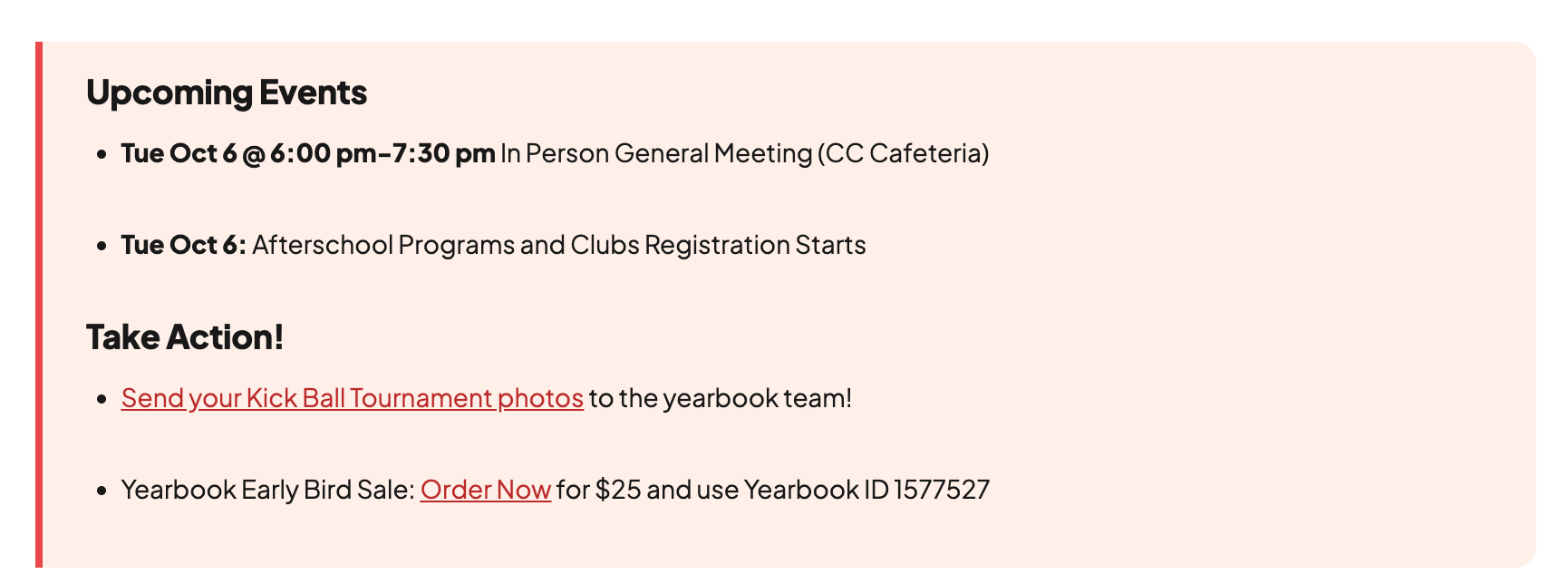
The Upcoming Events and Take Action! lists live in a box near the top of the home page. The weekly Chatter copies them from there.
Before you start
- Signed in to Webflow (get access)
- This week's Take Action and Upcoming Events lines (often from submissions)
- A quick check that nobody else is mid-way through a page edit (why)
Steps
- Open the Home page and find the box with Upcoming Events and Take Action! near the top.
- Change a line by clicking its text. Keep the usual format, for example "Tue Oct 6 @ 6:00 pm General Meeting (CC Cafeteria)", and link to more information if you can.
- To add a line, select an existing line and duplicate it, then change the text and link. Delete lines whose date has passed.
Why: Duplicate rather than build a new line, so it keeps the same look. Never delete the box or the two lists: the composer finds them by hidden labels (never delete or rename).
- Publish the site.
Why: The box is part of the home page, not a CMS item, so it goes online with a whole-site publish.
- Make the Chatter after this. The composer copies both lists from the published home page when you create an issue.
Why: Each issue keeps its own copy, so changing the home page later doesn't change an issue you already made. To change one issue, edit its Take Action and Upcoming Events fields in Webflow.
About the Events collection. The CMS has an Events collection, but no page shows it yet, so adding an event there changes nothing on the site. Use the home page box. The School Events page (/events) is an ordinary page: edit it as in Edit a page.
Webflow's own guide, for the general idea: Edit site content as a content editor. It is not about this site, so where it differs, follow this page.