Everyday tasksUpload or replace a photo or PDF
Everyday tasks
Upload or replace a photo or PDF
Photos and PDFs live in Webflow's Assets panel. A photo for one post can go straight into the post.
Before you start
- Signed in to Webflow (get access)
- The file, with a clear name, and big photos resized first
Steps
- For a photo in a post, upload it straight into the image field or the Body. For PDFs and flyers, open Assets and upload the file.
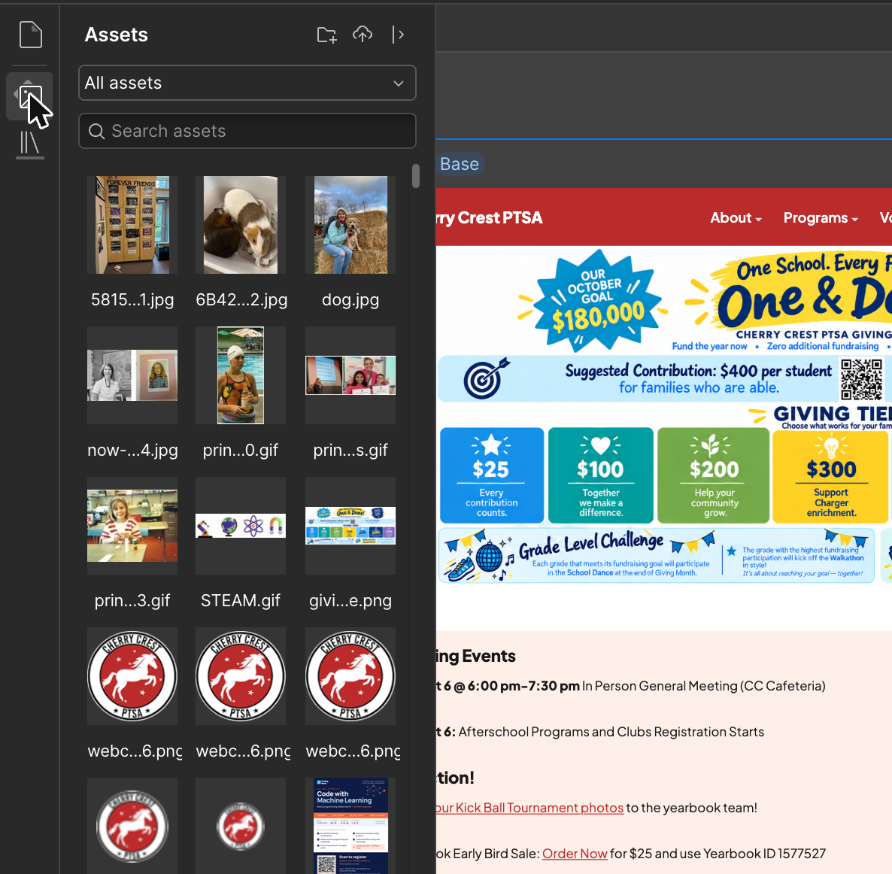
The Assets panel. The upload button is the cloud icon at the top. - Give files clear names (for example
2026-walk-a-thon-flyer.pdf) and resize big photos before you upload them. - To link a PDF, copy its address from Assets and paste it into the link or button.
- To replace a file: upload the new one, change every link or image that used the old one, then publish.
- Delete the old file only when you are sure nothing uses it anymore.
Good to know
- Always fill in alt text: a short description of what the photo shows. The composer flags missing alt text before a Chatter goes out.
- Old links to WordPress files (
wp-content) stop working at launch. Files used by the published newsletters and pages have already been moved into Assets, except two images that were already missing on WordPress.