New to WebflowA tour of Webflow for WordPress users
New to Webflow
A tour of Webflow for WordPress users
Webflow does the same jobs as wp-admin, but the screens are arranged differently. This page maps what you know from WordPress onto what you will see in Webflow. Keep it open in another tab the first few times.
The short version
| In WordPress you went to… | In Webflow, go to… |
|---|---|
| wp-admin dashboard | The Webflow Dashboard, then open the site |
| Posts | CMS panel → News Posts |
| Pages → edit with Elementor | Pages panel → click the page, then click on the words you want to change |
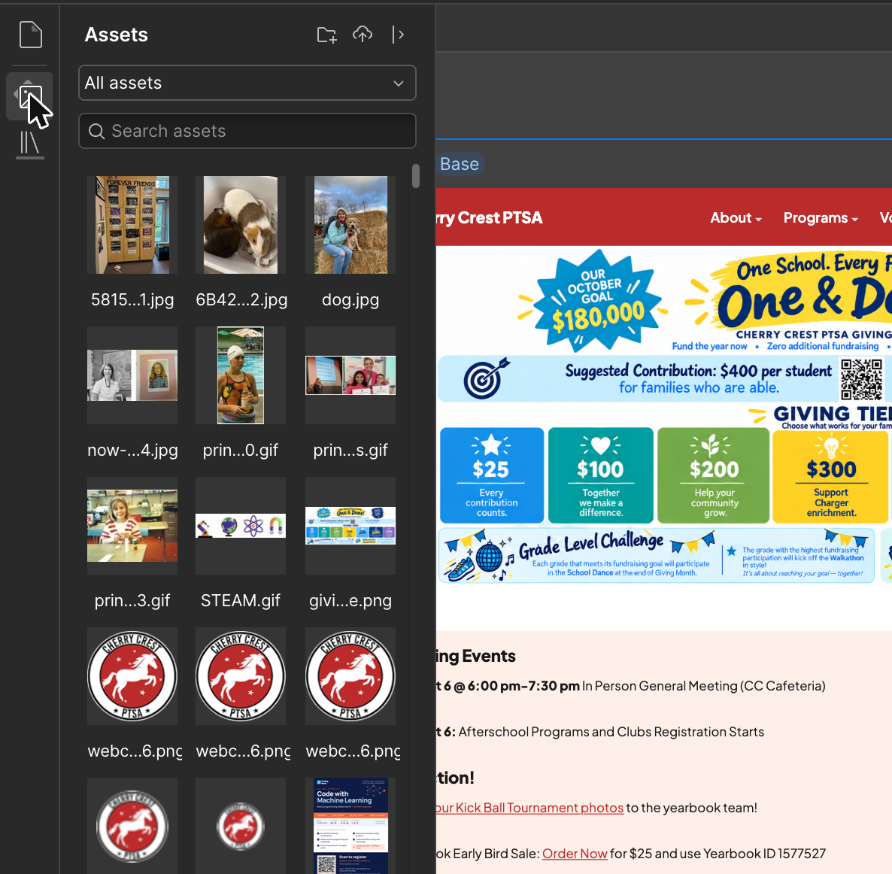
| Media Library | Assets panel |
| MailPoet | The newsletter composer and Brevo (outside Webflow) |
| The Update button | Nothing: Webflow saves as you type. To put changes online you publish (next page) |
The full list, plugin by plugin: Old way → new way.
The editing screen
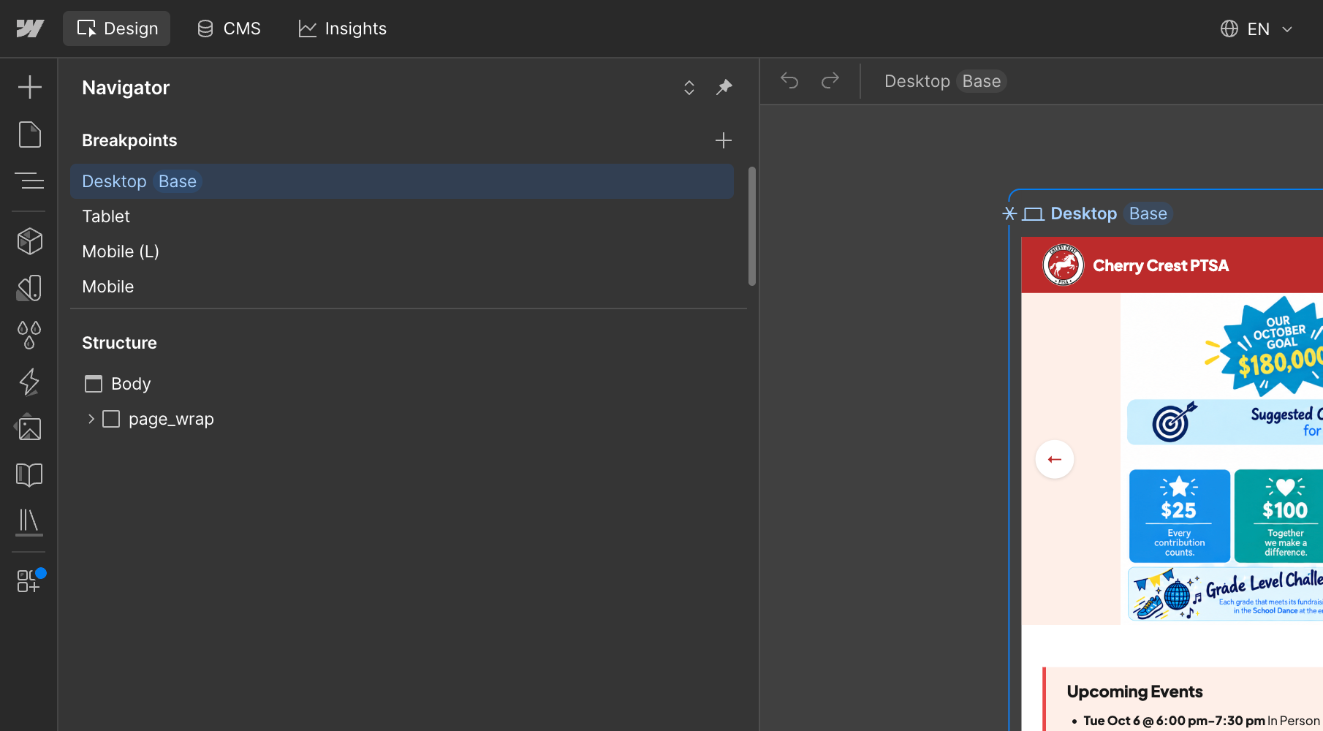
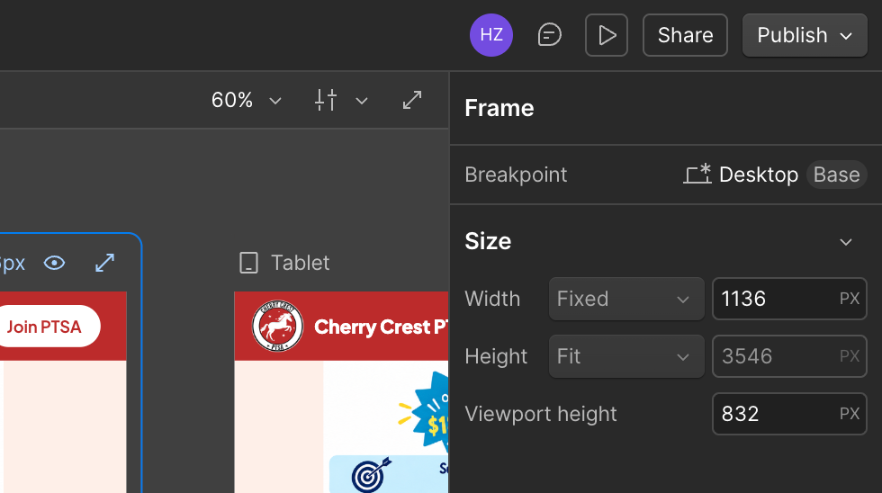
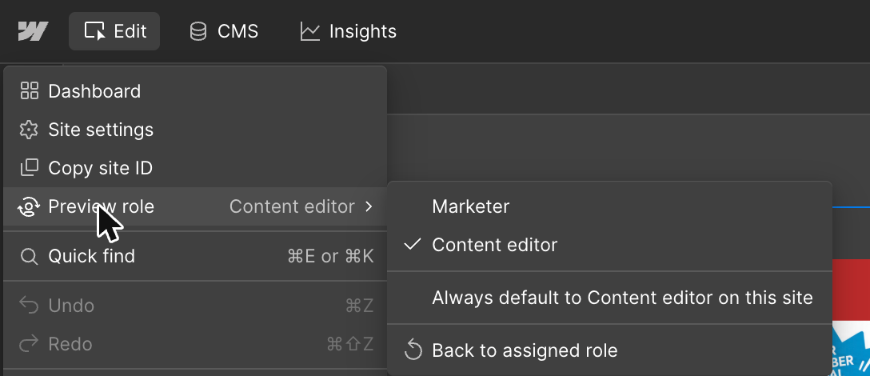
The shared login opens the site in the Designer, Webflow's full layout tool. It has many more buttons than you need. For everyday work, switch to Edit mode: it hides the layout tools so you can only change words, photos and links. Click the Webflow logo at the top left, then Preview role → Content editor. The first tab at the top then reads Edit instead of Design. To go back, choose Back to assigned role in the same menu.
In Edit mode you see the page in the middle (desktop, tablet and phone side by side), three icons down the left, and buttons along the top.
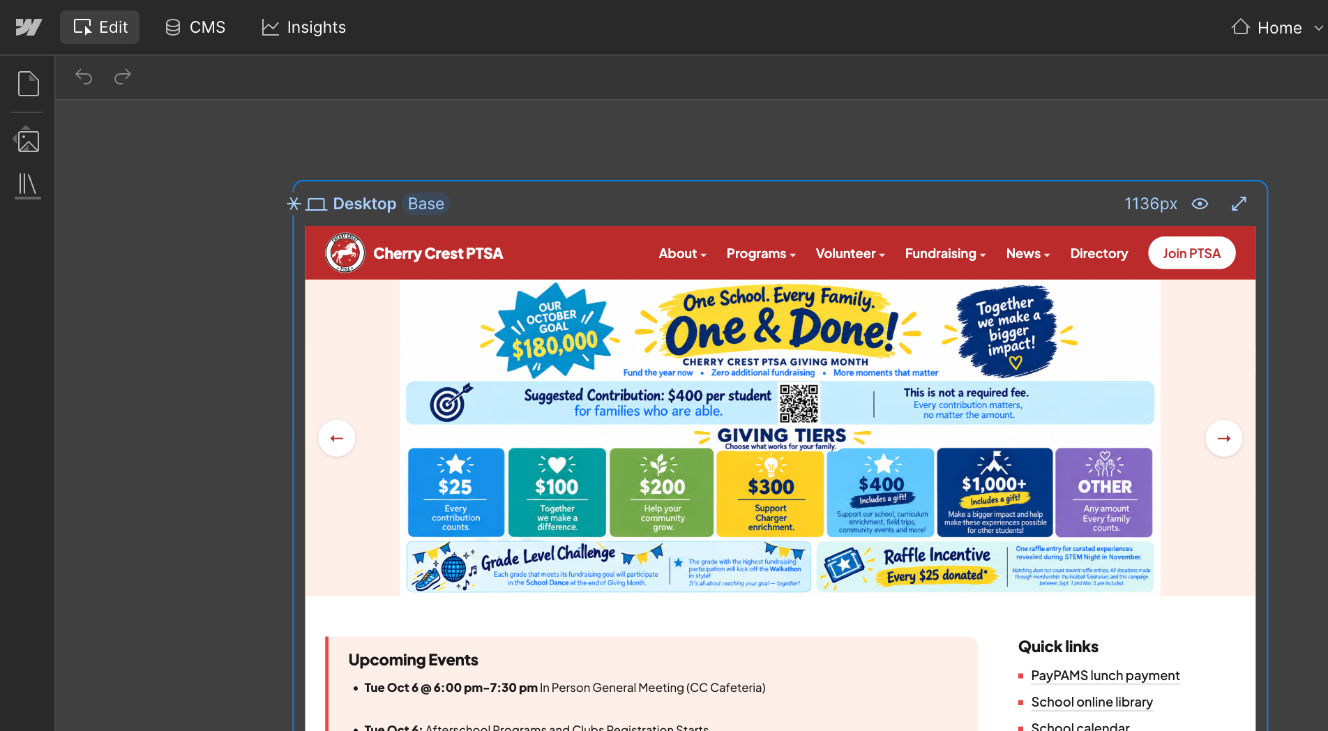
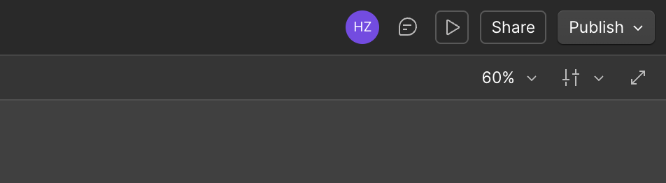
- Left icon bar. Opens the panels below. Hover an icon to see its name.
- The page. What visitors see. You edit right on it.
- Page name. Shows which page you are on. Click it to switch pages.
- Device buttons. Show the page as a phone or tablet would. Check here before you publish.
- Publish. Puts saved changes online.
The three panels you will use
Pages: the one-of-a-kind pages
Home, Join, Walk-a-Thon, each club. Click a page to open it, then click on text or a photo to change it.
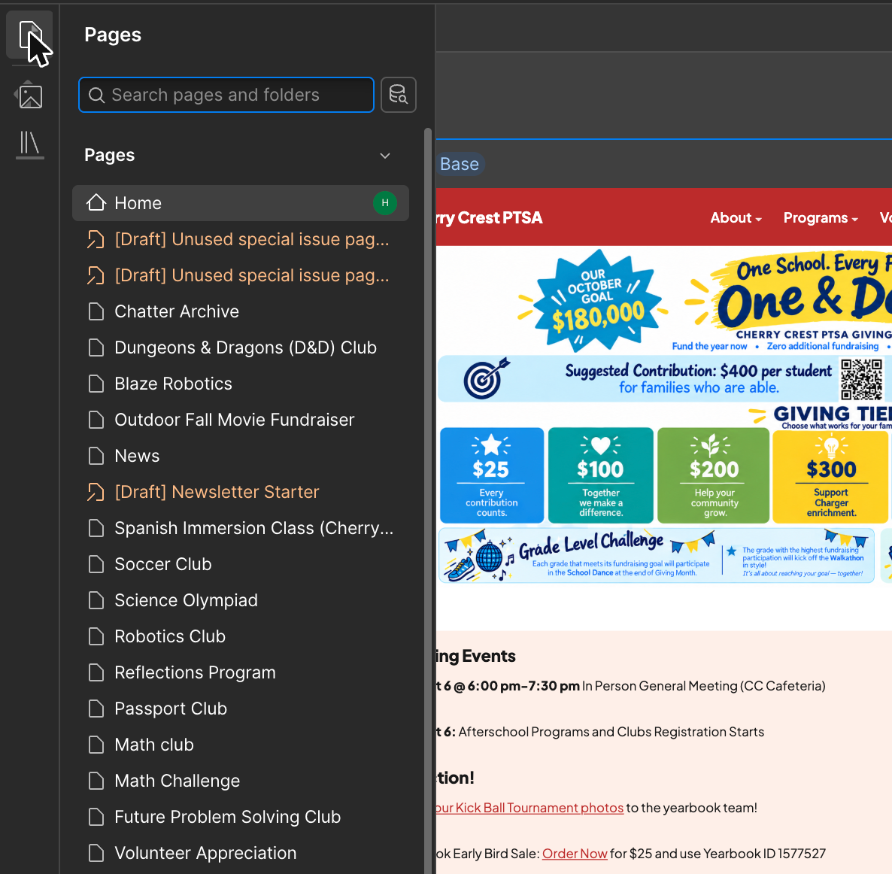
You will also see pages ending in "Template" and pages called "Unused special issue page". Leave those alone (why).
CMS: posts and newsletters
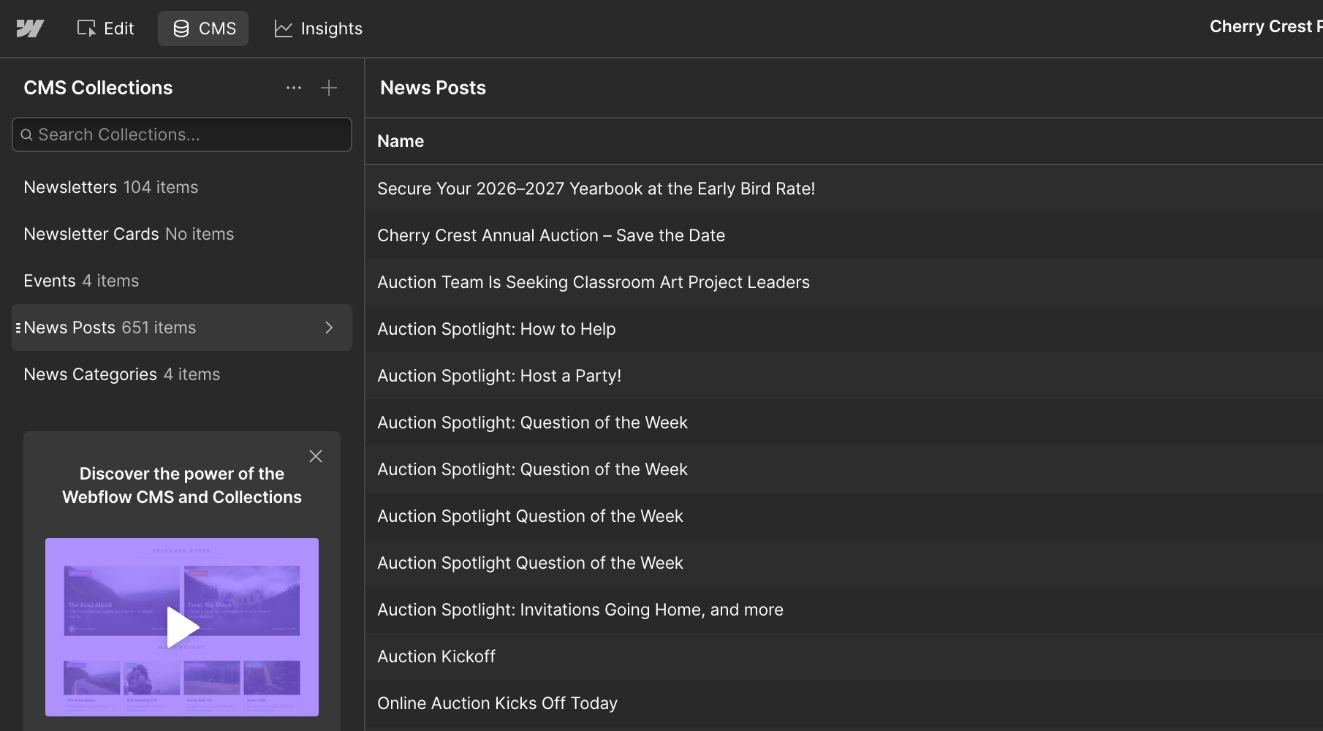
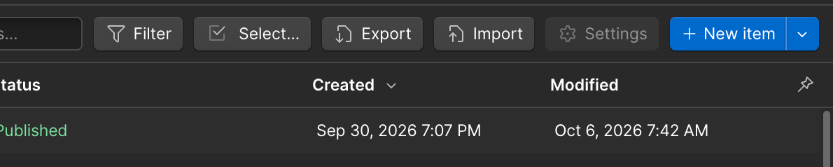
Think of this as WordPress's Posts screen. Each collection is a list, such as News Posts or Newsletters. Each entry in it is an item, and you edit an item by filling in a form, not by designing a page.
Assets: photos and PDFs
Like the Media Library. Upload files here, then use them on pages or link to them.
Outside Webflow: Brevo and the composer
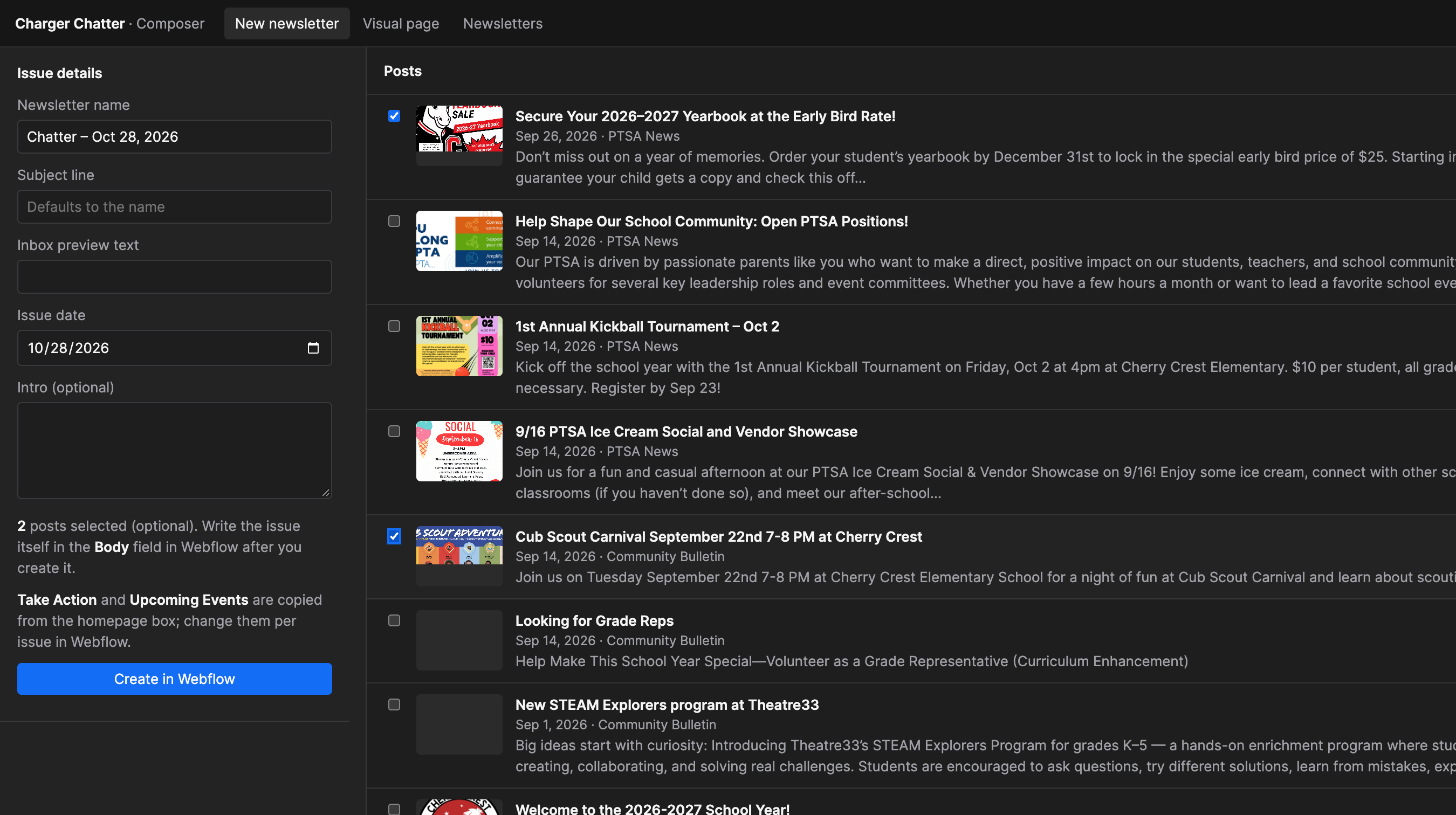
On WordPress, the MailPoet plugin sent the Chatter. Now an email service, Brevo, sends it, and the composer prepares each issue for it. An issue goes through them in this order:
| What it is | What you do there | |
|---|---|---|
| Brevo | An email service, like Mailchimp. Its own company and its own login | Check the draft, send a test, press send. See subscribers |
| Newsletter composer | The PTSA's own add-on tool, like a plugin. Not a Webflow or Brevo product | Pick the news posts to feature and group them into sections, turn the issue into an email, check it, and hand it to Brevo. It never sends to the whole list |
Brevo has its own help center: help.brevo.com. The composer is ours, so this handbook is its only guide.
What to stay out of
Outside Edit mode, the Designer shows a style panel on the right and an element tree on the left. Everything there changes the layout or the look, often on many pages at once. You do not need any of it for the tasks in this handbook. If you need a new section or page, ask the site manager.